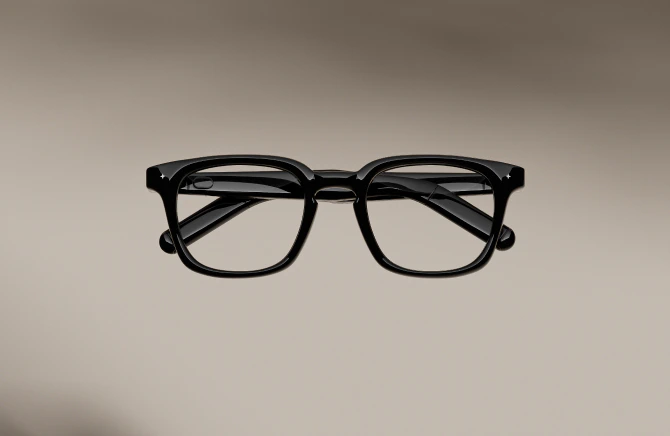
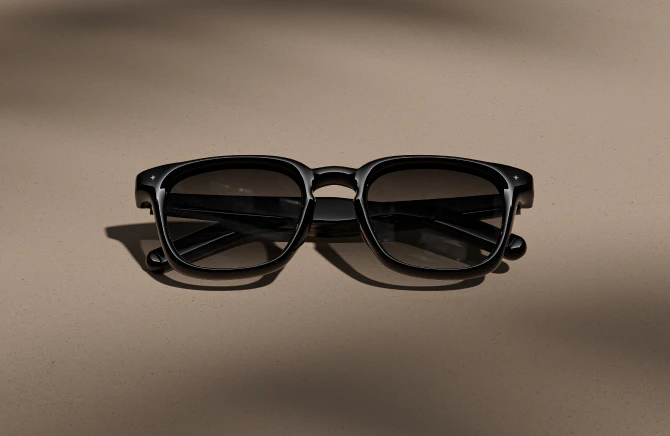
Intelligent Eyewear
01
Indicator light & sounds
Two ways the intelligent eyewear tells you what's happening: a single indicator light on the frame, and a small set of tones you'll come to know.
Lights
Light | What it means |
|---|---|
Solid Red | Charging — under 20% |
Solid Orange | Charging — 20–90% |
Solid Green | Charging — over 90% |
Slow Red Blink | Low battery — 10%, and again at 5% |
Slow Blue Blink | Pairing Mode |
Solid Blue | Meeting mode notetaking is on — a visible signal to the room, not just to you |
Sounds
Sounds | When you'll hear it |
|---|---|
Low Battery Tone | At 10%, and again at 5% |
Short tone (control unavailable) | If you tap the touch button during Meeting notetaking — the control is intentionally disabled |
Soft hourly tone | While Meeting notetaking is on, once per hour, so it can't quietly run all afternoon |
02
Wearing & fit
VONDER comes in 2 widths.
Frame width is identical across every style, so this is only about fit.
Size | Width & who it fits |
|---|---|
Medium | 140mm total width. Suited to narrow to medium face widths. |
Wide | 146mm total width. A wider fit for medium to larger face widths. |

How to check your size
Measure a pair of glasses you wear now — the total outside-to-outside width of the frame. Match to the closest above.
Or measure your face width, ear to ear across the temples. Compare to the frame width; the frame should sit within 2–3mm of your face width for a balanced look.
Between sizes? Choose smaller one for a closer fit and reliable wear detection.
03
Cleaning & care
Simple habits keep the intelligent eyewear at its best over time.
Lenses
Use the included microfibre cloth. Dry, or lightly damp with water.
Avoid alcohol, ammonia, and abrasive cleaners — they can damage coatings.
Magnetic charging pins
Keep the magnetic pins on both temple tips clean and dry.
Wipe with the microfibre cloth if you notice anything on them.
Don't force or twist the magnetic connector — the ends only fit one way round.
Storage
Return the intelligent eyewear to the included case when not in use.
Fold the temples inward gently — both arms should fold together, not against each other.
Temperature range
Condition | Range & what it means |
|---|---|
Charging | 32°F – 113°F. Only charge within this range. Charging outside it may damage the battery or cause safety risks. |
Everyday use | −4°F – 140°F. Comfortable range for wearing. Outside it, performance drops significantly or the intelligent eyewear may not power on. |
04
Firmware update
Updates keep VONDER quiet and improving. Here's how to run one when a new version is available.
Run an update
Make sure your intelligent eyewear is connected to the VONDER app.
Go to My VONDER › Firmware Update.
If there's a new version, tap Update Now and let it run. Keep your phone near your intelligent eyewear and leave the app open.
Your eyewear will restart after the update, please wait until it auto reconnect.
If your battery is below 20%, attach the magnetic connector before starting — updates won't run on low battery. Above 80%, no charging needed. Don't close the app or move your phone away while an update is running. If an update won't finish, see Troubleshooting.
Release notes
See what changed in each release — new features, refinements, and fixes.
View all release notes
05
Restart, reset & unpair
Three paths back to working order, from gentlest to most complete.
Try them in this order — each one starts fresh where the last one left off.
Restart
A soft power cycle. Keeps your account, pairing, and settings intact.
Try this first for most issues.
Slide the power switch on the inner right temple back to off.
Wait 5 seconds.
Slide the power switch forward again.
Reset
A factory reset returns the intelligent eyewear to its original state. It will erase your pairing history, settings, and all data. This action cannot be undone.
Charge the intelligent eyewear, then quick press the right temple button 5 times.
The indicator light will turn red and start flashing rapidly.
The intelligent eyewear will begin the factory reset process and enter pairing mode after completion. This process needs 1 minute.
After reset, Go to System Settings › Bluetooth on your phone and forget this device.
Unpair
Disconnects the intelligent eyewear from your VONDER account.
Open the VONDER app.
Go to My VONDER and tap Unpair Glasses.
Go to System Settings › Bluetooth on your phone and forget this device.
Troubleshooting
Won't pair
Hold the touch button on the right temple for 10 seconds until the light blinks blue. Move your phone within a metre. Confirm Bluetooth permission for the VONDER app.
Won't charge
Confirm both magnetic ends are attached — the indicator light only comes on when both temples are connected. Wipe the pins with a dry cloth.
Keeps disconnecting
Check for interference (other Bluetooth devices, thick walls). Confirm both temples have battery. Restart the intelligent eyewear.
No sound
Check volume with a swipe forward on the touch button. Confirm the intelligent eyewear is the active audio output on your phone.
"Hey VONDER" isn't working
Confirm All-day Autopilot mode — wake word is disabled during Meeting notetaking. Check microphone permission.
Notes aren't syncing
Confirm the app is open and your phone has connectivity. Sync happens whenever the intelligent eyewear is near the app.
Touch controls aren't responding
Touch is disabled during Meeting notetaking — the Meeting switch takes priority. Move it back to off. Otherwise, restart.
A firmware update won't finish
Keep the app open and your phone near the intelligent eyewear. If battery is below 20%, attach the magnetic connector. Restart both and try again if it stalls.
Meeting notes look wrong
Confirm the Meeting switch was on for the whole conversation. Edit or delete notes in the Summary tab. Report a systematic error to Support.
Wear detection isn't accurate
Confirm the fit isn't too loose. Clean the temple-inner sensor area gently with the included cloth.
Switched off on the charger
Normal for some conditions during charging. Slide the power switch back to on if you need audio while charging — though the intelligent eyewear shouldn't be worn while charging.